
Many iPhone users face sudden restrictions that limit their apps and private settings. These management profiles often appear on used or company-issued devices. You might feel stuck when a remote administrator controls your personal mobile device. This often creates confusion for new owners or buyers of used Apple devices.
Yet, you should first know why these locks exist to regain your digital freedom. Moreover, some people choose a professional tool like Dr.Fone iPhone Unlock for guided help. Anyhow, this guide will explain what MDM is and how you can manage it today.
Part 1. What is MDM? Understanding Mobile Device Management
Mobile Device Management is like a digital manager for your Apple hardware. It helps employers and schools manage devices by setting rules and restrictions. Through this system, administrators can install or remove apps and even monitor device usage. It creates a profile that stays hidden inside your phone or tablet. MDM ensures compliance and data security, but it can feel restrictive for personal device owners.
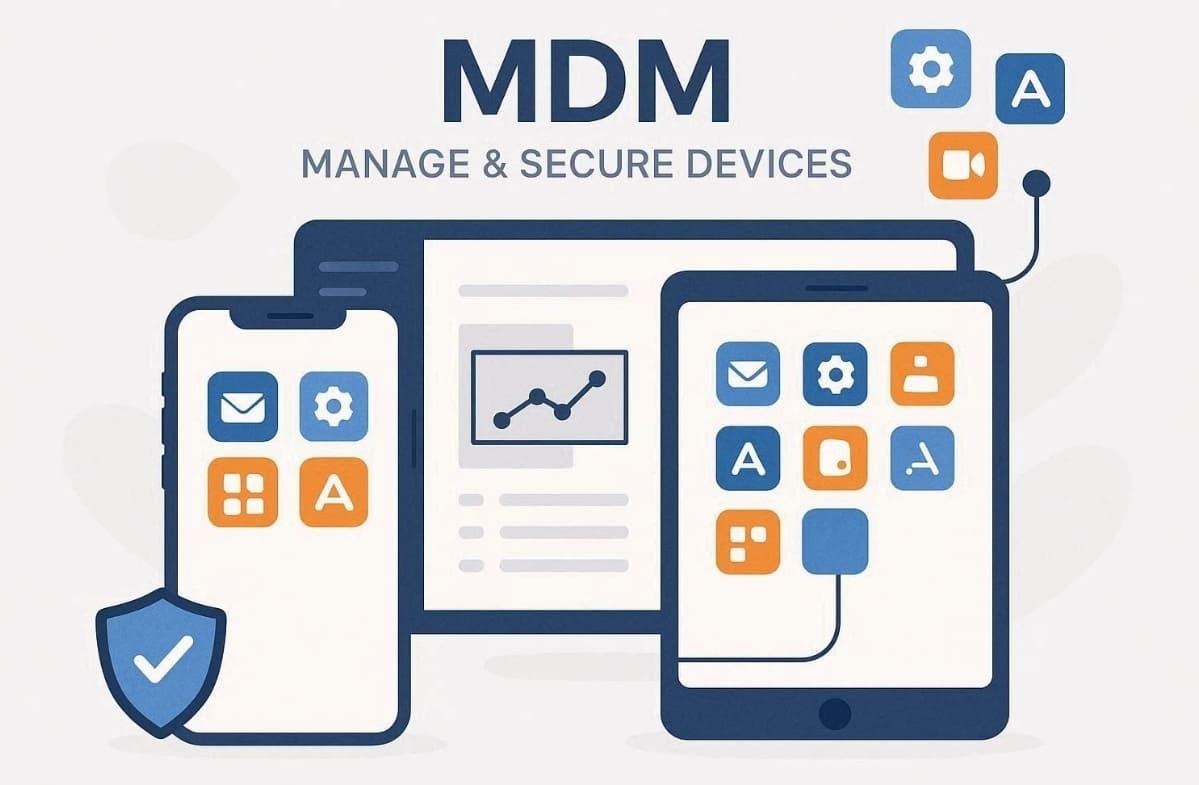
You might notice alerts like “supervised” or “managed by organization” when MDM is active. These controls are part of enterprise policies, not regular iPhone settings. In such cases, an iOS unlock tool can help you understand how to bypass barriers. Still, understanding these management layers is the first step toward a clean device.
Part 2. How to Identify MDM Restrictions vs. Normal Locks on iPhone or iPad
Standard lock screens usually ask for a passcode or your unique Face ID. However, an MDM screen will show a specific message. You might see a "Remote Management" screen during the initial device setup. This indicator proves that a company profile is currently active on your phone. You should look for these signs before trying to unlock MDM. So, use the table to identify which lock is on your device:
| Feature / Indicator | MDM Restriction | Normal Lock |
|---|---|---|
| Message on Screen | “Managed by organization” or “Supervised by organization.” | “Passcode required” or “iPhone is disabled.” |
| Control Authority | Remote administrator or company IT department | Device owner only |
| Restrictions Type | Limits apps, settings, profiles, or system updates | Blocks access until the correct passcode is entered |
| Source Cause | Mobile Device Management profile installed on the device | User-created passcode, Face ID, or Touch ID |
| Removal Approach | Requires admin credentials or removal of the MDM profile | Reset the device or enter the correct passcode |
Part 3. Check Device Ownership Before Removing MDM: Why Authorization Matters
Before taking steps to bypass restrictions, it’s essential to confirm device ownership. Ownership determines who has the legal and policy right to manage or remove control. For corporate phones, MDM exists to protect company data, apps, and compliance needs. These systems often block users from removing supervision without the company’s approval or help.
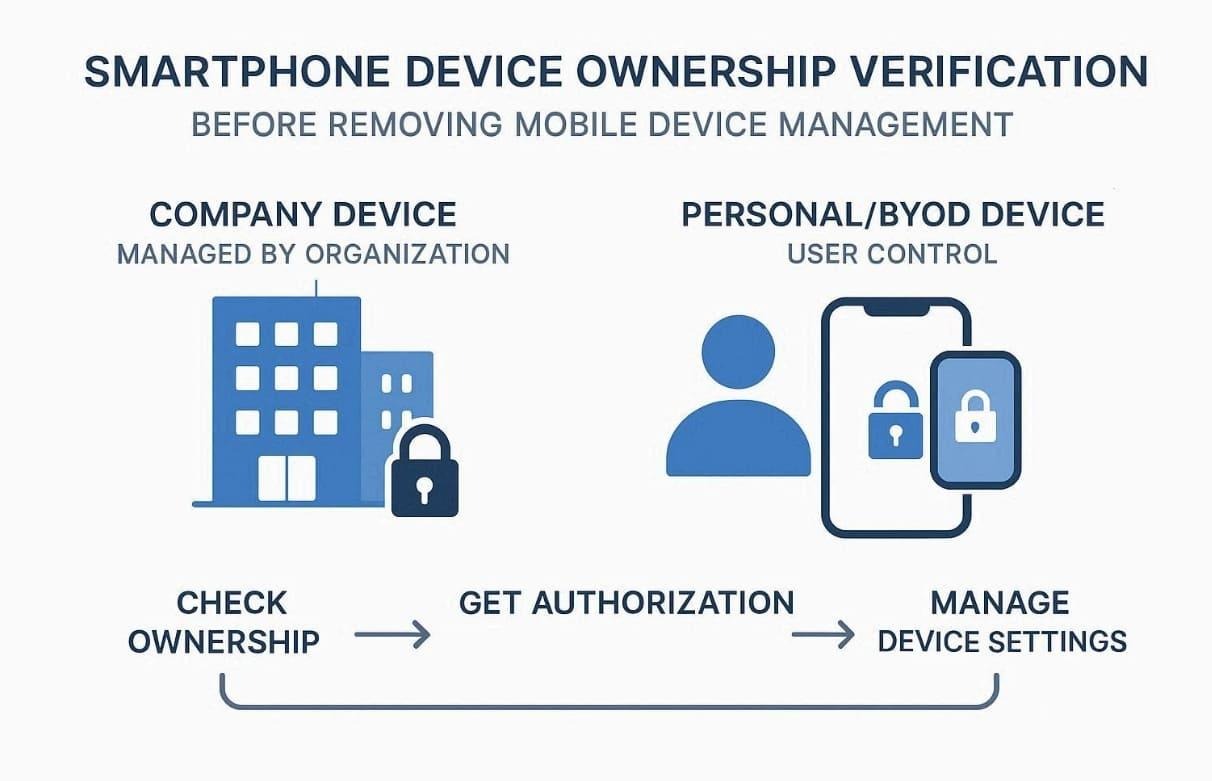
However, on personal or BYOD devices, users retain control and can remove profiles. MDM in such cases requires consent during installation and can be deleted manually. Before you attempt to remove MDM from iPhone, verify that you fully own it. Thus, this responsible check prevents accidental breaches while keeping your device safe. You will then be ready to explore the best removal methods available.
Part 4. Common MDM Removal Methods and Practical Paths for iOS Users
Several methods exist for users who need to bypass these management restrictions. You can contact the original administrator to ask for a remote profile removal. Some people prefer to use a specialized tool to unlock MDM very quickly. Each method has different requirements depending on your specific device ownership and status. Compare these common removal options in the table below to find your path:
| Removal Method | How It Works | Best For |
|---|---|---|
| Contact Administrator | The IT department removes the profile from their server dashboard | Company-issued or school devices |
| Settings Removal | Manually delete the profile in the “VPN & Device Management” menu | Personal or BYOD devices |
| Jailbreaking | Modify the system software to gain deep access to device files | Advanced users only (Risky) |
| Specialized Software | Use a desktop tool to bypass the remote management screen | Second-hand or forgotten logins |
Part 5. Using Dr.Fone MDM Unlock as a Structured Step-by-Step Guidance
When users face management locks, the best solution is to choose a reliable unlocking method. A structured option like Dr.Fone – Screen Unlock (iOS) ensures safe MDM removal. It eliminates restrictions while keeping your personal data fully protected and intact. This approach suits people who purchased second-hand devices or lost their original credentials. Besides, this iOS unlock tool supports iOS/iPadOS 26 to ensure complete compatibility.
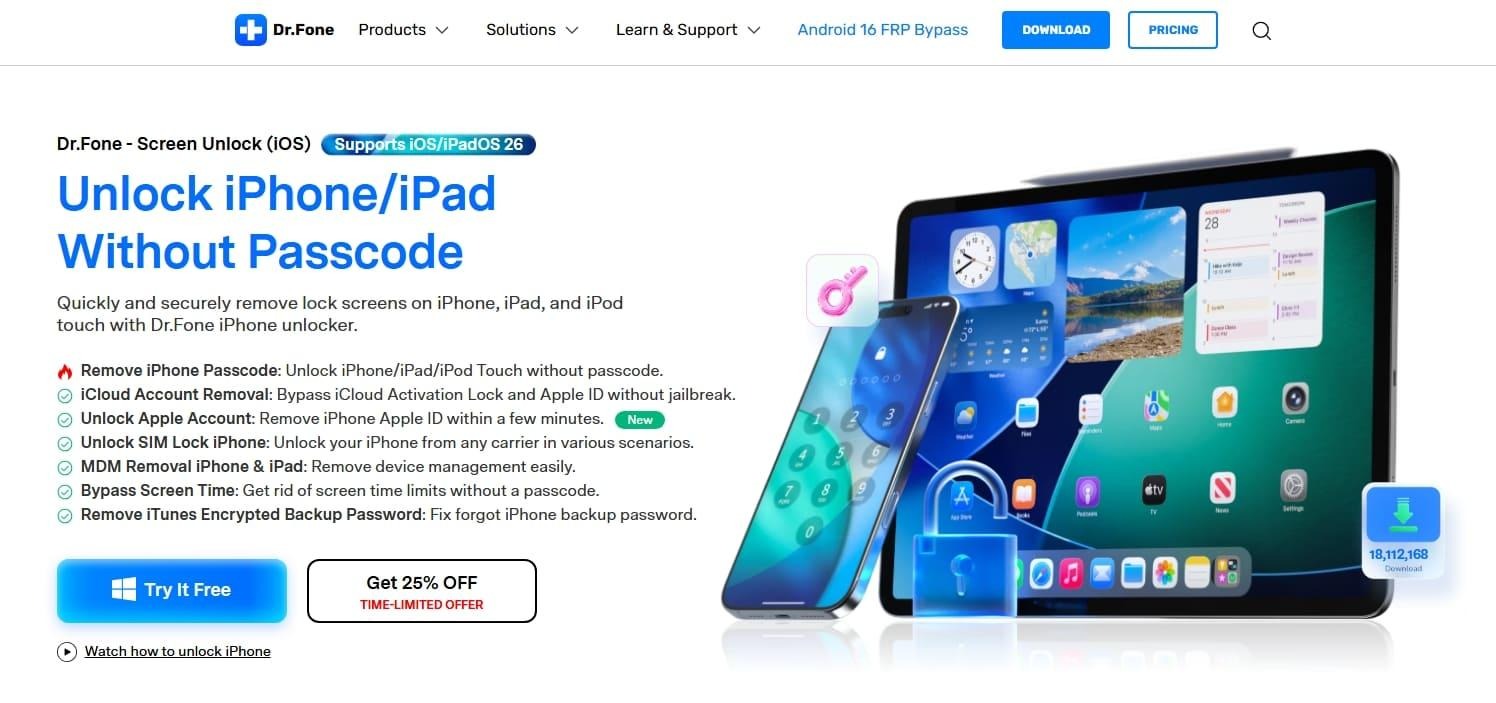
During the process, it quickly removes MDM profiles without requiring any risky jailbreak. You can even again access settings and software updates freely after removal. It also prevents unwanted changes made by an organization or previous owner. Plus, Dr.Fone works even if your device shows “MDM charging only” restrictions during setup.
Key Features
Hardware Compatibility: Use this tool with the latest iPhone 17 series and older models.
Fast Process: Complete the entire unlocking process in only 30 seconds for most mobile devices.
iCloud Unlock: Bypass the activation lock screen easily without using a jailbreak method.
Guide to Use Dr.Fone to Unlock the MDM Lock from Your iPhone/iPad
This reliable software allows you to unlock MDM safely in just a few minutes. You do not need any advanced technical skills to follow this helpful guided process. So, adhere to the steps below to complete the process with confidence and accuracy:
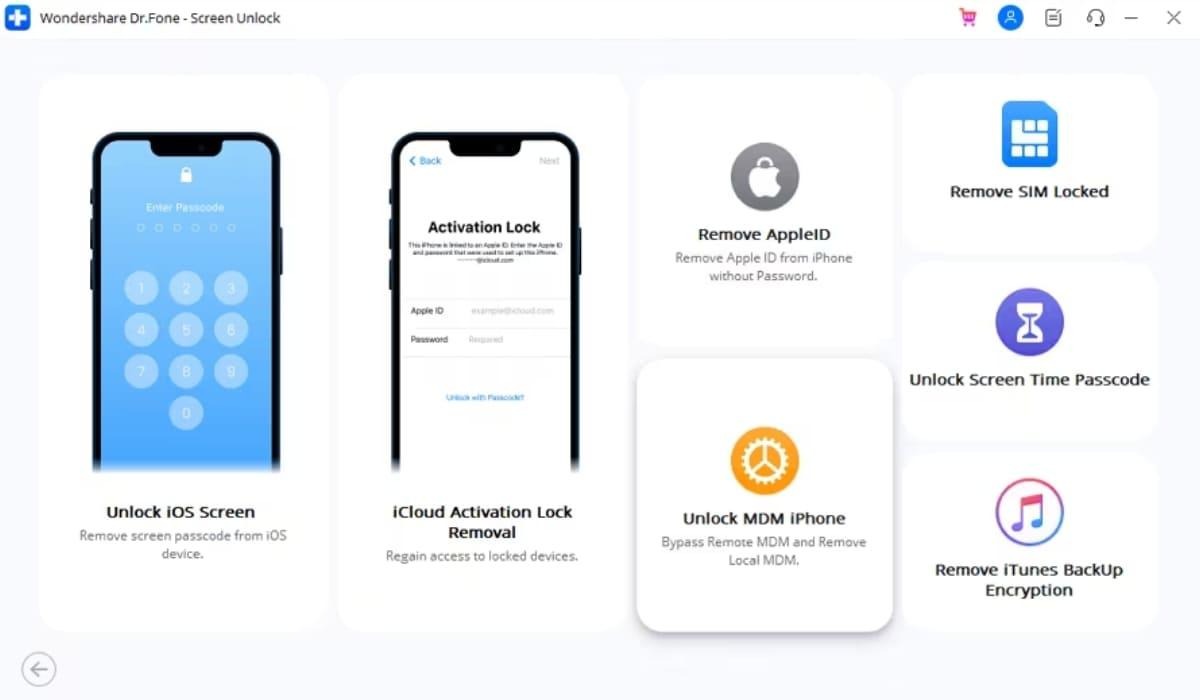
Step 1. Initialize the Connection to Remove MDM
Upon heading to the “Toolbox” tab, access the “Screen Unlock: module and specify “iOS.” Plug your iPhone into your computer and select the “Unlock MDM iPhone” option for the removal.
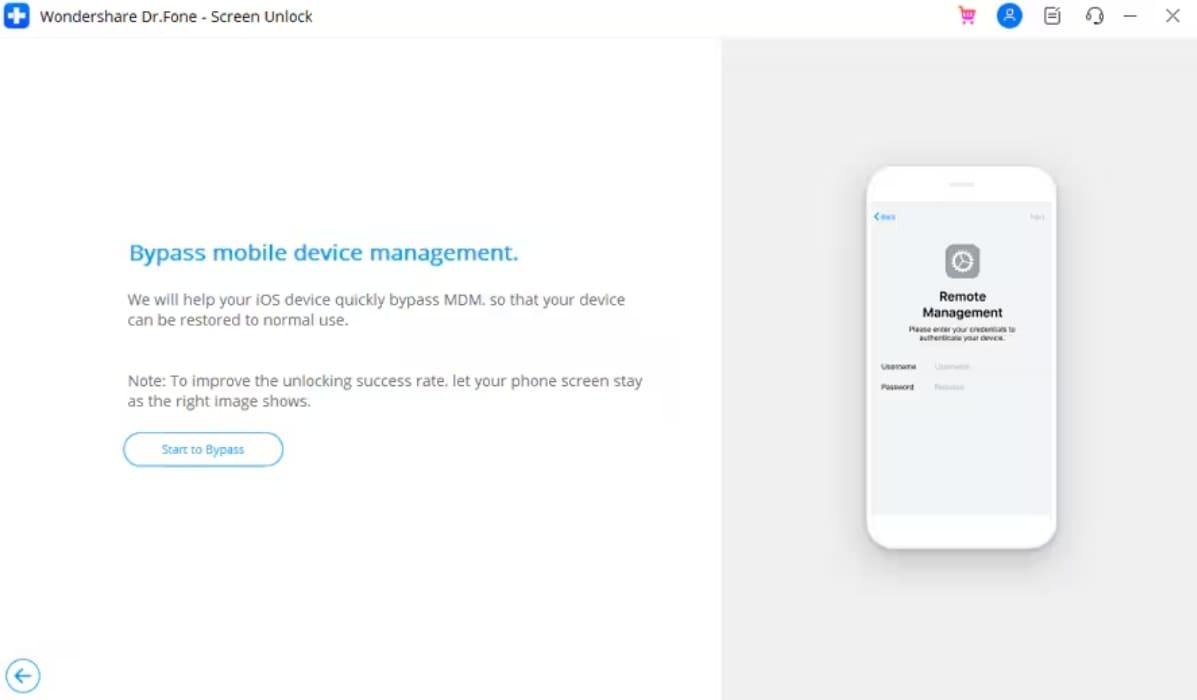
Step 2. Configure the Bypass Inside the Tool
On the following display, opt for “Bypass MDM” to target the Remote Management profile. Click “Get Started,” then confirm by hitting “Start to Bypass.” This triggers the software to begin its work on the MDM lock layers.
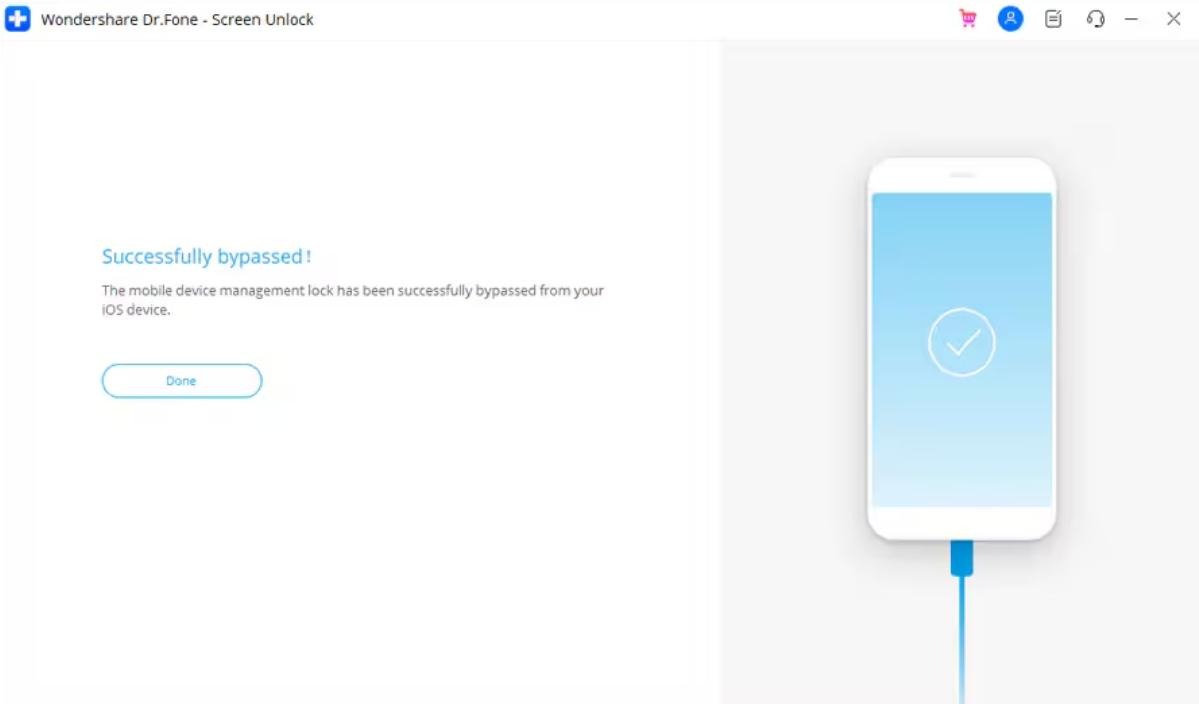
Step 3. Confirm Removing the MDM via Dr.Fone
Following that, you'll be prompted to toggle off "Find My iPhone," as this is a crucial step to succeed. Once that's disabled, the tool will initiate the lock-removal process. You'll know you're successful when the "Success" confirmation pops up on your screen.
Conclusion
In summary, managing MDM issues requires a clear understanding of ownership. You must identify the specific lock type before you attempt any removal steps. This guide has helped you navigate these complex management layers with much greater confidence. So, you can achieve total digital freedom by following a very structured workflow. If you need a reliable solution, you should use Dr.Fone iPhone Unlock.